The way we watch television has changed a lot in the past ten years. Many people no longer use the old cable box or satellite dish. Instead, they use smart TVs and connect directly to the internet. This change has made TV viewing simpler and more flexible. But with these changes, many people wonder: What exactly is Live TV on a smart TV? How does it work, and what makes it different from regular TV or streaming apps? If you have these questions, you are not alone.
In this article, you will learn what live TV means in the world of smart TVs. You will see how it works, what types of live TV you can get, and how it compares to other ways of watching shows.
You will also find out about popular live TV apps, get answers to common problems, and discover tips for making the most of your smart TV’s features. Whether you are completely new to smart TVs or just want to understand live TV better, this guide will give you clear and simple answers.
What Is Live Tv On A Smart Tv?
Live TV on a smart TV means you are watching television channels in real time, as they are broadcast. This is similar to the way traditional TV works, where you flip through channels and see what is on right now.
The difference is that with a smart TV, you don’t always need a cable or satellite connection. Instead, you can use the internet to access live channels.
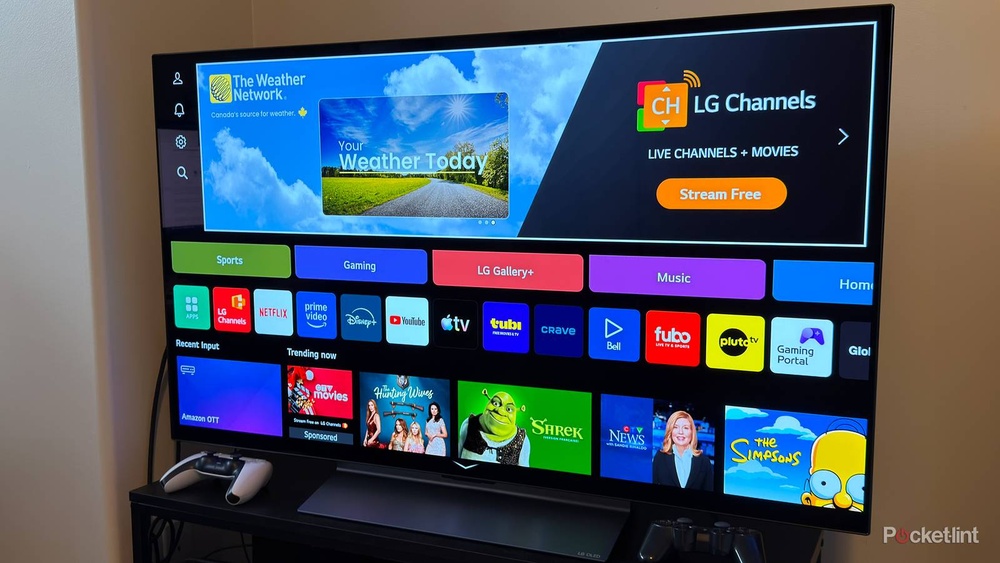
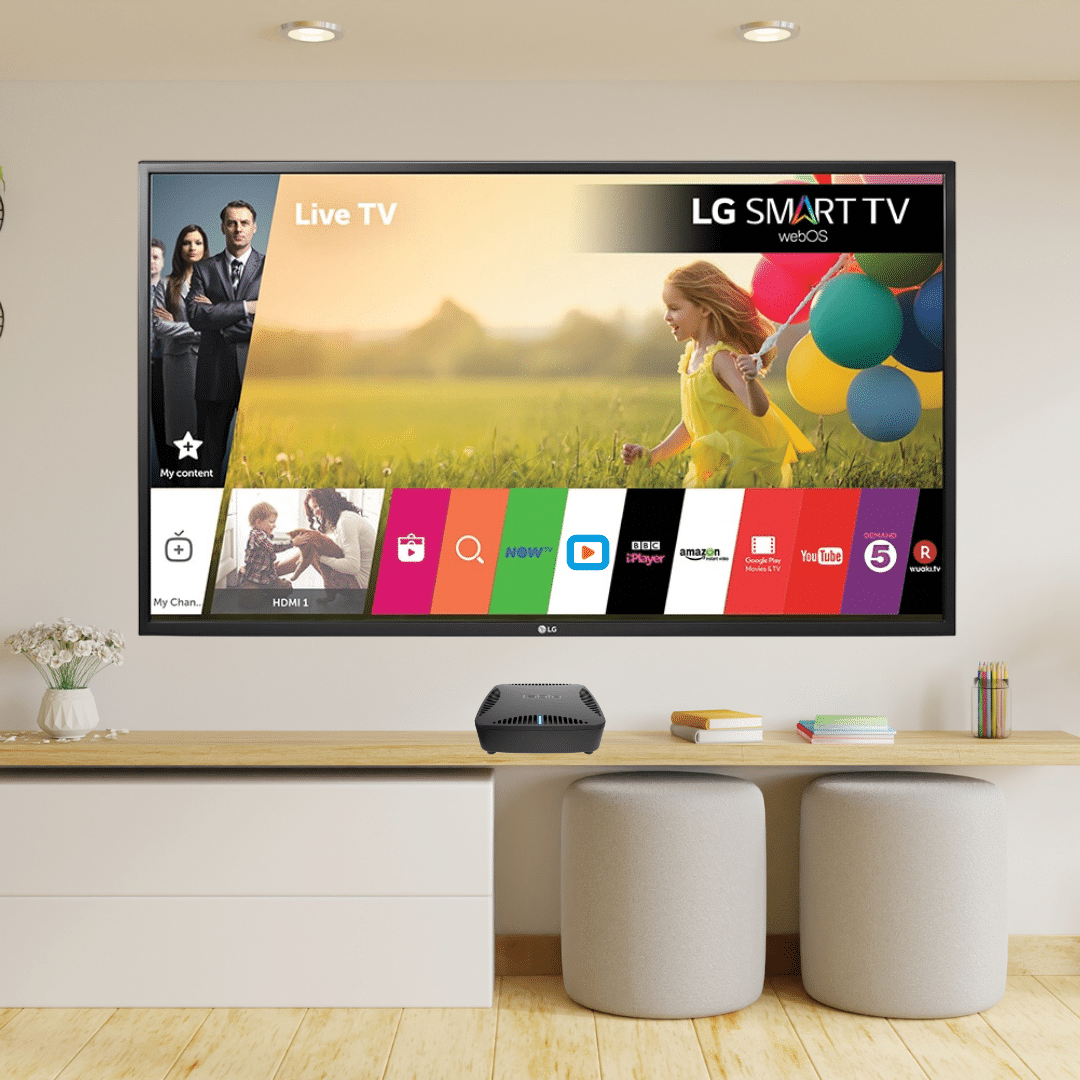
Most smart TVs come with built-in apps or features that let you watch live TV. Some brands call this “Live Channels,” “Samsung TV Plus,” “LG Channels,” or “Google TV Live. ” These services often include a mix of news, sports, entertainment, and local channels, all streamed over the internet.
You do not need to wait for shows to be uploaded—you see them as they happen.
A key point is that live TV is not the same as on-demand streaming, where you choose what to watch and when. With live TV, the schedule is set, and you join in at whatever point the program is airing, just like flipping on a traditional TV.
How Does Live Tv Work On Smart Tvs?
Smart TVs are designed to connect to the internet. This lets them run apps, much like a smartphone. When you use a live TV app or service on your smart TV, it connects to the internet and streams the video to your screen in real time.
There are two main ways to watch live TV on a smart TV:
- Using an antenna: You can connect a regular TV antenna to your smart TV. This lets you watch local over-the-air channels for free, such as ABC, CBS, FOX, NBC, and PBS. The smart TV organizes these channels and often gives you a guide to see what’s on.
- Using internet streaming apps: Most smart TVs have apps for live TV services. These include free options (like Pluto TV, Samsung TV Plus, or LG Channels) and paid options (like YouTube TV, Hulu + Live TV, Sling TV, and fuboTV). When you choose a channel, the app streams it over your home internet connection.
Some smart TVs even combine both options. You can see over-the-air channels from your antenna and internet channels in one guide.
Example: Watching Live News
Suppose you want to watch live news. On your smart TV, you open an app like Samsung TV Plus or Pluto TV. You scroll to the news category and pick a channel like NBC News Now or CBSN. The stream starts immediately, showing exactly what is airing on that channel right now.
Credit: www.tablotv.com
Types Of Live Tv On Smart Tvs
Live TV on smart TVs can mean different things depending on how you access it and what content you get. Here are the main types:
1. Over-the-air (ota) Live Tv
This is the oldest type. You use an antenna to pick up free broadcast channels. Most smart TVs have a built-in TV tuner, so you just plug in the antenna. The TV scans for channels and shows you what is available in your area.
- Pros: Free; includes local news and sports; no internet needed.
- Cons: Limited to local channels; signal can be weak in some areas.
2. Free Streaming Live Tv
Many smart TVs come with built-in live TV channels that stream over the internet. These are often called “FAST” channels (Free Ad-supported Streaming TV). Examples are Samsung TV Plus, LG Channels, and Pluto TV. You get hundreds of channels with news, sports, movies, and more—all for free, but with ads.
- Pros: No cost; huge variety; no extra devices needed.
- Cons: Many channels are niche or older content; includes ads.
3. Paid Live Tv Streaming Services
These services offer a full set of channels like traditional cable, but streamed over the internet. Examples include YouTube TV, Hulu + Live TV, Sling TV, and fuboTV.
- Pros: Includes popular cable channels; sports; DVR features.
- Cons: Monthly fees; some channels may be missing; requires good internet.
4. Tv Everywhere Apps
These are apps from major networks (like ABC, NBC, CBS) that let you watch their live channel if you have a cable or streaming subscription. You must log in with your provider account.
- Pros: Access to premium live content.
- Cons: Requires a paid TV subscription.
5. Local Channel Apps
Some local channels offer their own apps with live streams. These are useful if you want local news or weather.
- Pros: Local content; often free.
- Cons: Coverage varies by area.
How Live Tv On Smart Tvs Compares To Other Tv Options
It’s helpful to see how live TV on smart TVs is different from other ways to watch. Here is a comparison to make things clearer:
| Feature | Smart TV Live TV | Cable/Satellite | On-Demand Streaming |
|---|---|---|---|
| Real-Time Channels | Yes | Yes | No |
| Internet Needed | For streaming channels | No | Yes |
| Monthly Cost | Free & paid options | Usually expensive | Often lower |
| DVR/Recording | Often included with paid services | Yes (extra fee) | No (except downloads) |
| Channel Variety | Good (especially with paid apps) | Very broad | Not live, but lots of choices |
Key Takeaways
- Live TV on smart TVs gives you real-time channels without a cable box.
- You can combine free, local, and paid channels.
- If you mainly watch live events or sports, live TV apps are often cheaper than cable.
Popular Live Tv Apps And Services For Smart Tvs
Different smart TVs offer different built-in live TV services. You can also add apps for other live TV providers. Here are some of the most popular options:
1. Samsung Tv Plus
Built into most Samsung smart TVs, Samsung TV Plus gives you access to over 200 free live channels. Categories include news, sports, movies, and more. No sign-up is needed.
2. Lg Channels
LG smart TVs offer LG Channels, which includes over 300 free live streaming channels. It covers news, entertainment, kids’ shows, and more.
3. Pluto Tv
Available on most smart TVs, Pluto TV offers over 250 free live channels. It is known for its wide variety and easy-to-use guide.
4. Roku Channel (on Roku Tvs)
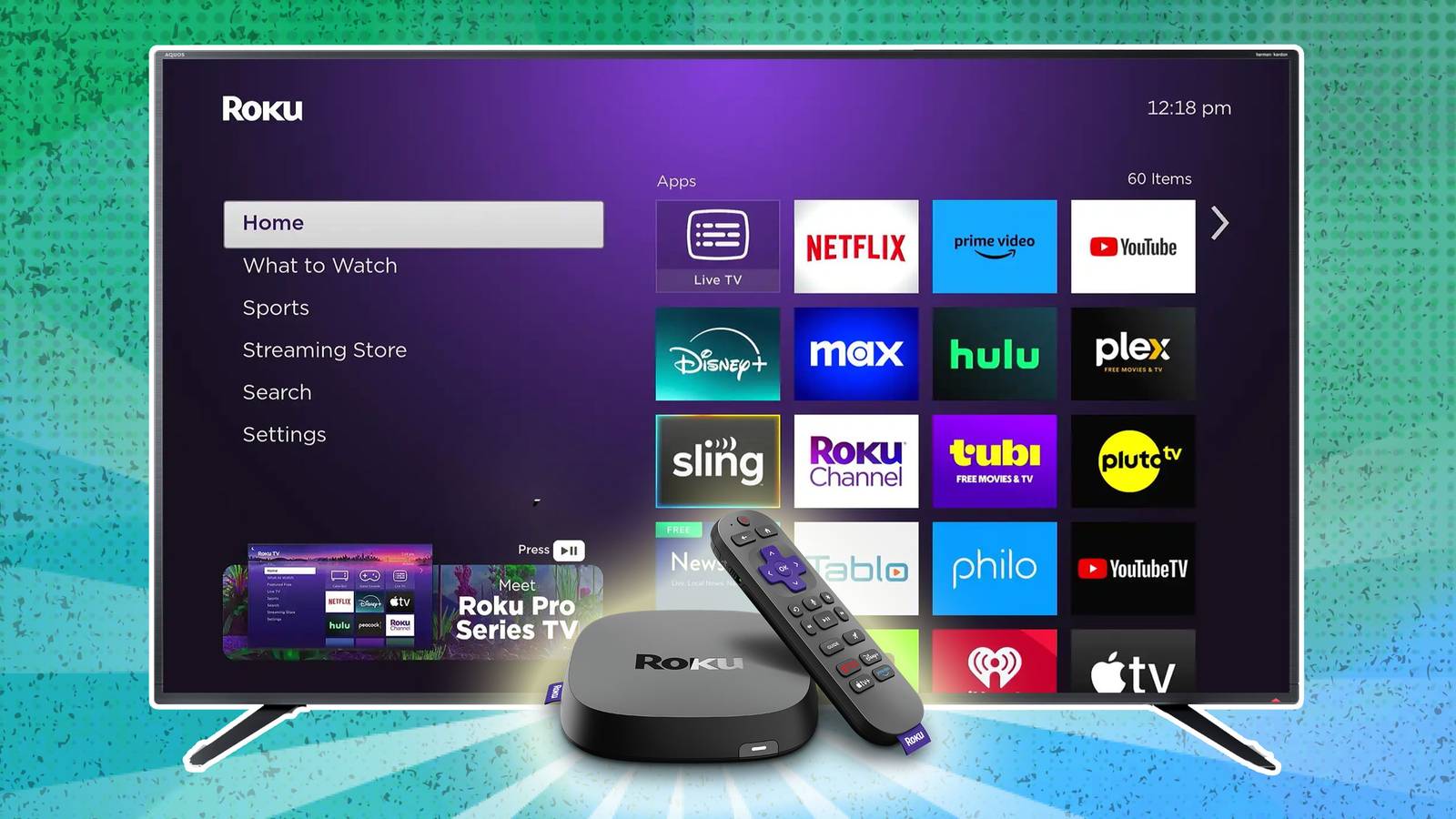
Roku TVs come with The Roku Channel, giving you free live TV options and a wide selection of on-demand content.
5. Youtube Tv
A paid service, YouTube TV offers 100+ live channels, including sports, news, and entertainment. It includes a cloud DVR and works on most smart TVs.
6. Hulu + Live Tv
Another paid option, Hulu + Live TV combines live channels with Hulu’s on-demand library. It includes major networks, kids’ shows, and sports.
7. Sling Tv
Sling TV is a flexible paid service where you can choose your channel package. It is popular for people who want a cheaper way to get live cable channels.
8. Fubotv
This service is known for live sports, but it also has news and entertainment. It is great for sports fans who want to cut the cord.
9. Local Channels Via Antenna
Most smart TVs allow you to connect an antenna and access local live channels for free. This is useful for news, network shows, and sports.
10. Peacock, Paramount+, And Other Network Apps
Many networks have their own apps with live streams, but some require a subscription or cable login.
How To Set Up Live Tv On Your Smart Tv
Getting started with live TV on your smart TV is usually easy. Here are the main steps:
1. Connect To The Internet
Make sure your smart TV is connected to your Wi-Fi or wired internet. Most live TV features need an internet connection.
2. Use Built-in Live Tv Channels
- On Samsung TVs: Press the “Home” button, go to “Samsung TV Plus.”
- On LG TVs: Open “LG Channels” from the home menu.
- On other brands: Look for “Live TV,” “Channels,” or similar.
3. Install Live Tv Apps
Go to your TV’s app store (e. g. , Google Play, LG Content Store, Samsung Apps). Search for live TV apps like Pluto TV, Sling TV, or YouTube TV. Download and open the app.
4. Connect An Antenna
Plug the antenna into the “Antenna In” port on your TV. Go to the TV’s settings and scan for channels. Your TV will find all available local channels.
5. Sign In (if Needed)
For paid services, you will need to create an account and sign in. Some apps may ask for a cable or satellite provider login.
6. Browse And Watch
Open your live TV app or built-in service. Browse the channel guide, select a channel, and start watching live.
Pro Tip
If your internet is slow, you may see buffering or lower video quality. For the best experience, use a strong Wi-Fi connection or connect your TV directly to your router with an Ethernet cable.

Credit: www.samsung.com
Benefits Of Watching Live Tv On A Smart Tv
Switching to live TV on a smart TV offers several advantages. Here are the main benefits:
1. Flexibility
You can mix free, local, and paid channels to create a custom TV experience. There is no need for a cable box, and you can change apps or services anytime.
2. Cost Savings
Many live TV options are free (with ads), and paid services are often cheaper than cable or satellite. You can cancel or change plans easily.
3. More Content Choices
Smart TVs let you switch between live TV, on-demand streaming, YouTube, and more—all from one device. You are not limited to just live channels.
4. Modern Features
Most live TV apps offer guides, search, and recommendations. Some paid services have cloud DVR, so you can record and watch shows later.
5. Easy Updates
Apps and channels are updated automatically, so you get new features without buying new hardware.
Non-obvious Insight
Many people do not realize that some smart TVs let you combine over-the-air antenna channels and streaming channels into one guide. This means you can see everything in one place, making it easier to find what you want.
Drawbacks And Limitations Of Live Tv On Smart Tvs
Live TV on smart TVs is not perfect. Here are some common drawbacks:
1. Internet Dependence
Most live TV features need a strong, stable internet connection. If your internet is slow or cuts out, live TV may not work well.
2. Channel Gaps
Free live TV apps often do not include major sports or premium channels. Paid services can fill this gap, but may still miss some channels you want.
3. Ads
Free live TV apps have ads, sometimes more than regular TV. Even paid services may show ads during live broadcasts.
4. Geographic Restrictions
Some channels are only available in certain countries or regions. You may not get the same channels as someone in a different city or country.
5. App And Device Compatibility
Not all live TV apps are available on every brand of smart TV. Some older TVs may not support new apps.
6. User Experience
Switching between live TV apps and finding channels can be confusing at first. Each app has a different guide and menu.
Non-obvious Insight
Some users expect smart TV live TV features to replace everything they had with cable, including all local sports and regional news. In reality, you may need to combine several apps or use an antenna for true local coverage.
What You Need For The Best Live Tv Experience
To enjoy live TV on your smart TV, a few things will help you get the best results:
1. Fast Internet
A steady internet connection is key. For HD live TV, you need at least 10 Mbps per stream. For 4K, 25 Mbps or more is recommended.
2. Good Wi-fi Or Ethernet
If your TV is far from your router, use a Wi-Fi extender or connect with an Ethernet cable for a stronger signal.
3. Up-to-date Software
Keep your smart TV and apps updated. Updates fix bugs and add new features.
4. A Quality Antenna
If you want local channels, choose an antenna with the right range for your area. Indoor antennas work for cities; outdoor ones are better for rural areas.
5. The Right Apps
Install and try several live TV apps. Many are free, so you can find the mix that fits your needs.
How To Choose The Best Live Tv Option For You
With so many choices, picking the right live TV setup can be confusing. Here is a simple way to decide:
| Situation | Best Option | Why |
|---|---|---|
| Want free TV and local news | OTA antenna + Free live TV app | Get local and many free streaming channels |
| Need sports and cable channels | Paid service (YouTube TV, Sling, fuboTV) | Full channel lineup, sports, DVR |
| Prefer on-demand shows | Netflix, Hulu, Amazon Prime | Choose what to watch, no schedule |
| Want everything in one place | Paid live TV app + antenna | Combines local, cable, and streaming |
Practical Tip
Try the free options first. You may be surprised how much live TV is available without paying. If you need more channels, you can add a paid service later.
Common Problems And How To Fix Them
Even with the latest smart TVs, you may run into problems with live TV. Here are some common issues and solutions:
1. Buffering Or Freezing
Cause: Slow internet or Wi-Fi interference.
Solution: Move your TV closer to the router, use an Ethernet cable, or upgrade your internet speed.
2. Missing Channels
Cause: Antenna not strong enough, or app/channel not available in your area.
Solution: Try a better antenna or check if the app supports your region.
3. App Crashes Or Won’t Open
Cause: Outdated app or TV software.
Solution: Update your apps and TV software in the settings menu.
4. Bad Video Quality
Cause: Low internet speed or too many devices using bandwidth.
Solution: Pause other downloads, check your speed, or watch at a lower resolution.
5. Guide Not Showing Channels
Cause: Channel scan not completed or app error.
Solution: Rescan for channels (antenna) or restart the app.
Non-obvious Insight
Some smart TVs let you “favorite” channels in the guide. This makes it easier to jump to your preferred channels without scrolling through hundreds of options.
Live Tv Features You Should Know About
Smart TVs offer more than just live channels. Here are some features that can improve your viewing:
1. Channel Guide
Most live TV apps and built-in services have an electronic program guide (EPG). This lets you see what’s on now and what’s coming up.
2. Cloud Dvr
Paid live TV apps like YouTube TV and Hulu + Live TV let you record shows in the cloud. You can watch them later from any device.
3. Parental Controls
You can block certain channels or programs, so kids only see age-appropriate content.
4. Voice Search
Many smart TVs let you search for channels or shows using your voice. This is faster than typing with the remote.
5. Picture-in-picture
Some TVs let you watch live TV in a small window while using another app or browsing the guide.
6. Multi-user Profiles
Apps like YouTube TV let different family members have their own profiles, so recommendations and favorites are personalized.
Pro Tip
Check your TV’s settings for accessibility features like closed captions, audio descriptions, or high-contrast guides. These can make live TV easier to use for everyone.
The Future Of Live Tv On Smart Tvs
Live TV on smart TVs is growing fast. More channels and features are added every year. Here is what you can expect in the coming years:
- More free channels: Companies are adding hundreds of new free live streaming channels.
- Personalized guides: Your TV may suggest channels or shows based on your viewing habits.
- Better picture quality: 4K and even 8K live streams are becoming available for major events.
- Integration with smart homes: You may be able to control live TV with voice assistants or see live TV on other devices.
- Interactive features: Some live channels are adding real-time polls or shopping options.
For more details on how smart TVs and live TV are changing, you can visit this CNET Smart TV Guide.
Frequently Asked Questions
What Is The Difference Between Live Tv And On-demand Streaming On My Smart Tv?
Live TV means you watch shows as they are broadcast, following a set schedule. If you join late, you miss the start. On-demand streaming lets you choose what to watch and when, pausing or rewinding as you like.
Do I Need A Subscription To Watch Live Tv On My Smart Tv?
No. Many smart TVs offer free live TV apps like Pluto TV or Samsung TV Plus, which do not need a subscription. However, for premium channels or sports, you may need a paid service like YouTube TV or Hulu + Live TV.
Can I Watch Local Channels On My Smart Tv?
Yes. You can connect an antenna to your smart TV to get local channels for free. Some live TV streaming services also include local channels in certain areas.
Why Are Some Live Tv Channels Missing On My Smart Tv?
Some channels are only available in certain regions or countries. Others may require a paid subscription or may not have an app on your TV’s platform. Try different apps or check if the channel has its own app.
How Much Internet Speed Do I Need For Live Tv Streaming?
For HD live TV, you need at least 10 Mbps per stream. For 4K streams, aim for 25 Mbps or higher. Faster speeds give you better quality and less buffering.
Credit: dokasch.com
Final Thoughts
Live TV on your smart TV brings together the best parts of traditional TV and the flexibility of streaming. You can watch news, sports, and entertainment in real time, often without a cable box or extra equipment. With a mix of free and paid options, you can find a setup that matches your budget and interests.
Remember to try different apps, keep your TV updated, and use a strong internet connection for the best experience. Live TV is now easier and more flexible than ever—making your smart TV a true all-in-one entertainment device.