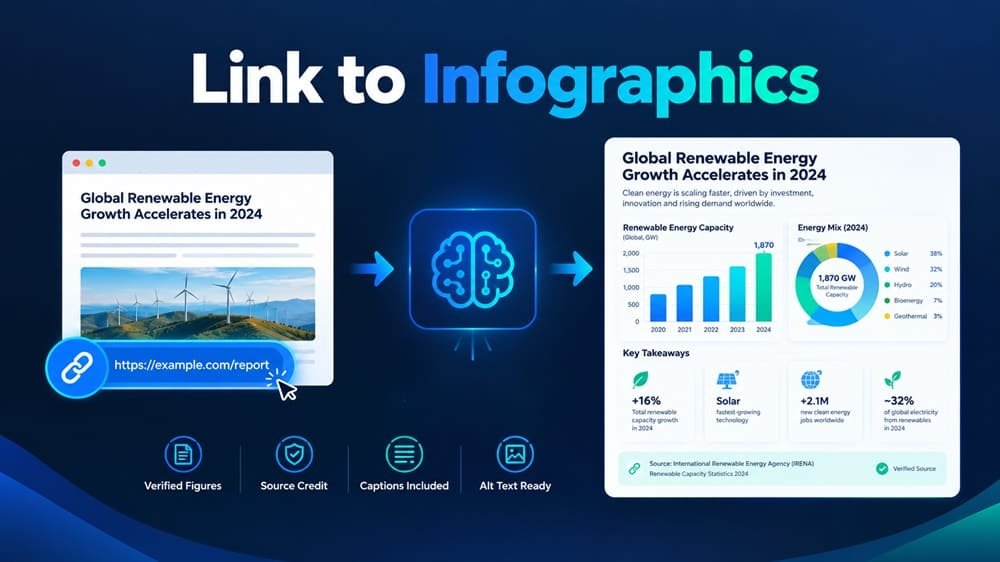
You can add a link to an infographics review by placing the URL directly into your content using a clear text label, or by using a button that directs readers to the evaluation page. Place links near the graphic so readers can easily find your data source.
Why Adding a Link to Your Visuals Matters
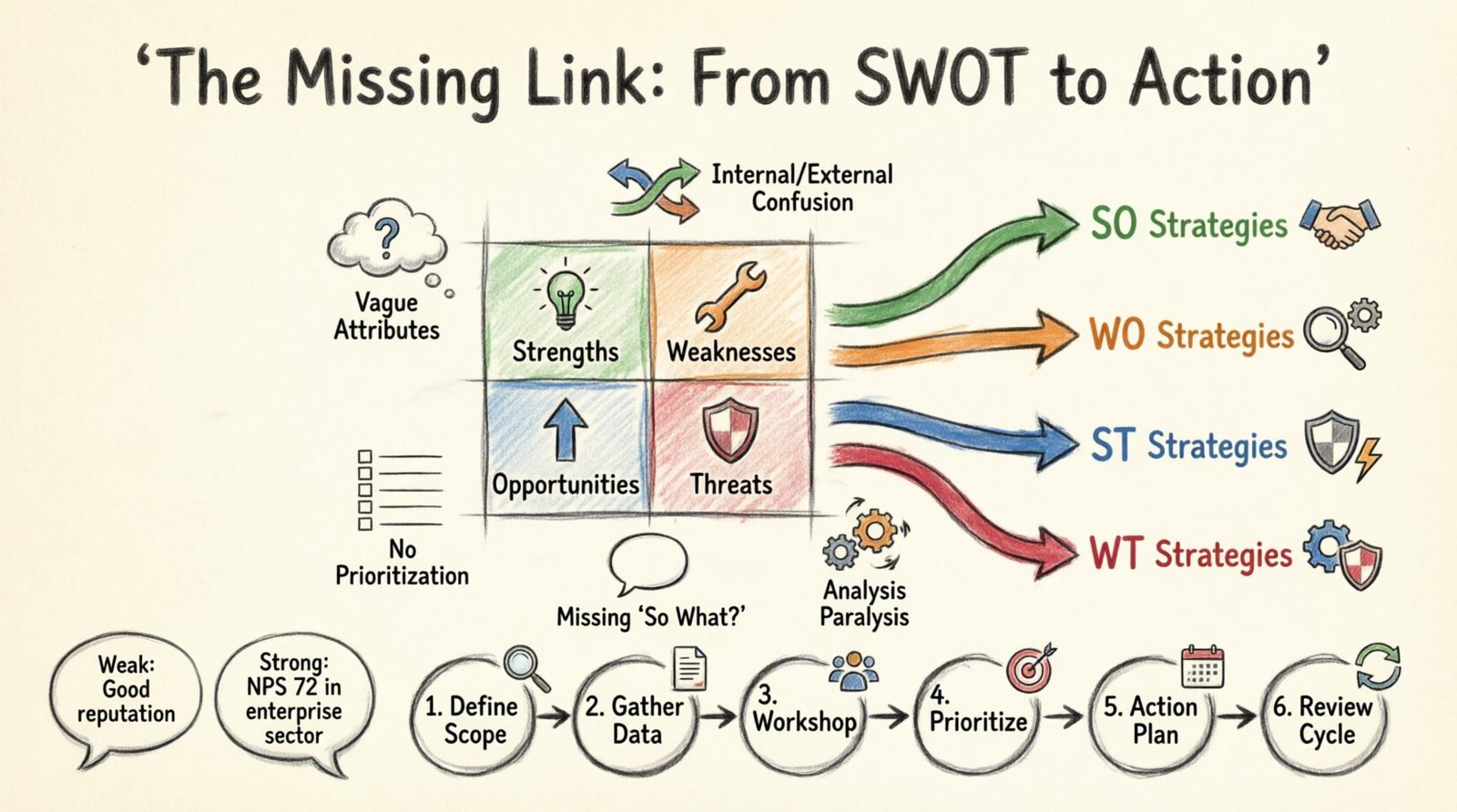
Adding a link to your content allows you to build authority and trust with your audience. When you provide a direct path to the source of your information, you show that your work is based on real data rather than just opinion.
Improving Search Engine Visibility
Search engines prefer content that’s well-connected to other reliable pages. Linking to authoritative sources signals that your content is part of a verifiable conversation. This helps search algorithms understand your work, potentially improving your site’s search ranking.
Building Trust With Your Audience
Readers are often skeptical of numbers presented without context.
Tip: Always place your link in a location where the reader’s eye naturally rests, such as directly below the image or in a short caption, to ensure they don’t miss the context.
Best Practices for Placing Links
When you’re ready to include a link, you need to consider how the user will interact with your page. Avoid burying links in long paragraphs. Use descriptive anchor text so readers know what to expect.
| Link Placement | Why It Works | Best For |
|---|---|---|
| Below the image | Keeps the context near the visual | Quick fact-checking |
| In the body text | Flows naturally with the narrative | Detailed explanations |
| In a sidebar | Always visible on the screen | Ongoing references |
| As a button | Highly visible and clickable | Driving traffic to a review |
Avoiding Common Mistakes
One of the biggest mistakes people make is using vague anchor text like “click here.” This tells the reader nothing about the destination. Instead, use specific language that describes the content of the page you’re linking to, such as “Read the full research analysis” or “See the data breakdown.” This helps both the user and search engines understand the value of the link.
How to Choose the Right Source to Link
Not every source is created equal. When you’re looking for an infographic review or a source to back up your claims, you should prioritize organizations that have a reputation for accuracy. This means looking for government agencies, educational institutions, or established industry standards bodies.
Checking for Authority
Before you add a link, ask yourself if the source is one that you would trust with your own reputation. A high-quality source should have clear contact information and a history of publishing reliable data.
Ensuring the Link Is Stable
Dead links suggest that you aren’t maintaining your content, which can frustrate your readers.
Is It Safe to Link to External Infographic Reviews?
Linking to external content is generally safe and encouraged, provided you follow a few basic rules. In fact, most users appreciate being directed to the source of a complex idea.
When You Should Be Careful
You should exercise caution if the link you’re considering leads to a site that asks for personal information or requires a login just to see a basic chart. A good review should be accessible without barriers.
The Role of Nofollow Attributes
If you’re worried about your search engine ranking, you can use a “nofollow” tag on your links. This tells search engines that you’re linking to a site but aren’t necessarily endorsing it as part of your own content strategy. Use nofollow for user-generated content, but standard links for reputable sources.
How to Keep Your Links Current
Information changes quickly. A statistic that was true last year might be outdated today. To maintain the quality of your content, you should review your links at least once every few months.
Managing Large Collections of Links
If your site features many infographics, you might want to create a dedicated page to manage your references. This keeps your main articles clean while still providing a comprehensive list of all the sources you’ve used.
Updating Your Visuals
When you update a link, you might also need to update the infographic itself. Create a new version of the graphic or add a note that the data reflects a specific year.
Frequently Asked Questions
Do I need permission to link to an infographic review?
No, you don’t typically need permission to link to a public website. As long as you aren’t copying their images without credit or claiming their work as your own, a simple link is perfectly fine.
Should I link to the image file or the page?
You should always link to the page that contains the infographic. Linking directly to an image file can be problematic because the image might be moved or renamed, causing the link to break.
How many links should I include in one infographic?
There’s no fixed rule for the number of links, but you should prioritize quality over quantity. List multiple sources in a “References” section to keep the content clean.
What if the source page disappears?
If you find a broken link, the best action is to remove it immediately. If the information is still important, try to find an archived version or a newer report from the same organization.
Does linking affect my site’s loading speed?
A single link won’t affect your page load speed. However, adding dozens of external scripts or heavy widgets can slow down your site.
Why does my link to the review show an error message?
An error message when you click your own link usually means the URL was typed incorrectly or the destination page has been moved. If the page is gone, remove the link or find a new source to keep your infographic credible.
What should I do if the review page is behind a paywall?
If the page you want to link to requires a subscription, it’s often better to avoid using it as your primary source. Readers will be frustrated if they click your link to verify a fact only to be stopped by a payment request. Instead, look for summary reports or press releases from the same organization, as these are often free and provide the key data points in an accessible format.
Can I link to a review that uses different units of measurement?
Yes, you can link to a review that uses different units, but you must be clear about it in your text. For example, if your infographic uses miles but the linked review uses kilometers, add a brief note like “Source uses metric units” near the link.
How do I handle links that open in new tabs?
Setting your links to open in a new tab is a common practice for infographics and external resources. In most website builders, you can enable this by checking a box labeled “Open in new tab” or “Open in new window” within the link settings menu.
Is it better to link to a video review or a text review?
Both formats are useful, but text-based reviews are often easier for readers to scan for specific data points. If linking to a video, ensure it has a transcript or description with the original figures.
How do I link to a PDF report instead of a webpage?
Linking to a PDF is acceptable, but you should always warn the reader by adding “(PDF)” after your anchor text. This manages expectations, as PDFs can take longer to load and sometimes require a specific viewer.
What if the review page is updated after I publish?
If a review page is updated, your link might point to different information than your infographic shows. To avoid this, link to a stable URL or a specific version of a report.
Can I use a URL shortener for my infographic links?
While URL shorteners make links look cleaner, they can also hide the destination, which makes some readers suspicious. For professional content, it’s better to use the full, original URL. If the URL is very long, use clear anchor text to hide the link entirely.
Does the position of the link affect how many people click it?
Yes, links placed within the first few lines of text or directly under a prominent image get more clicks than those tucked away at the bottom of a page. If the link is essential for understanding the infographic, place it in the most visible spot possible. If it’s just for secondary reference, placing it in a list of sources at the end of the article is perfectly acceptable.
How do I know if my links are actually working?
You should test your links periodically by clicking them yourself from a different device, like a smartphone or a tablet.
What are the risks of linking to an international source?
Linking to international sources is a great way to add perspective, but be aware of regional differences in data. For instance, a report from another country might use different standards for safety or measurement. Always mention the region of the source, such as “According to the European Environment Agency,” so readers understand the context of the data.
How should I format links in a sidebar?
Keep sidebar links short and use icons to help readers identify content quickly. Ensure the sidebar remains visible on both desktop and mobile views.
Is there a limit to how many links I can put in a single paragraph?
Too many links in one paragraph can make the text hard to read and distract the reader from your main point. Try to limit yourself to one or two links per paragraph. If you have more sources, group them together at the end of the section.
Should I link to a source that’s over five years old?
Linking to old sources can be risky, especially if the topic involves technology, health, or fast-changing industry standards. If you must use an older source, add a note explaining why it’s still relevant, such as “This remains the standard reference for this process.” If a newer, more accurate source exists, always prioritize that one to keep your content current.
Can I link to a social media post that reviews the infographic?
Linking to social media is generally not recommended for professional articles. Social media posts are often deleted, edited, or buried in a feed, which makes them unstable sources for your data. Stick to websites that are owned and maintained by recognized organizations.
What if I want to link to multiple reviews at once?
To provide a balanced view, create a small comparison table. This table can list the different sources, their primary findings, and a link to each. This approach is highly professional and helps your readers see the full picture by comparing different viewpoints in one organized location.
How do I handle links that lead to a search result page?
Never link to a search result page, as these are temporary and often change based on the user’s location or history. Always link to the specific page that contains the review or the data you’re citing. If you can’t find a direct link, keep searching until you find a stable, permanent URL.
Why do some links open in the same window?
Links that open in the same window are the default setting for most browsers. While this is fine for general reading, it can be annoying for users who are trying to compare your infographic to the source. If you want to be helpful, ensure all your external links are set to open in a new tab.
Can I link to a review that’s written in another language?
You should warn readers if a link leads to a source in another language. If the source isn’t in English, consider finding an alternative to ensure all readers can use the information.
How do I make my links stand out without using bold text?
You can make links stand out by using a different color or an underline, which is standard practice for most websites. A clear, high-contrast color that’s different from your regular body text is the best way to guide the reader’s eye to the link without being overwhelming.
Should I link to a review that I wrote myself?
Linking to your own work is perfectly acceptable if it provides additional context that the current article doesn’t cover. Just be sure to frame it as a helpful resource rather than a self-promotion.
What if the link destination has many ads?
Avoid linking to pages overloaded with ads, as they provide a poor experience for your readers. If a page is difficult to navigate, choose a different source to ensure a helpful path for your audience.
Can I link to a government report that’s very long?
Yes, but it’s best to link to the specific page or section of the report that backs up your data. Linking to a 100-page document confuses the reader. Providing a deep link to the relevant chart saves the reader time and encourages verification.
Conclusion
Adding these links helps your audience trust your work and encourages them to explore the topic further. Once you’ve updated your post, take a moment to click each button yourself to ensure they’re working perfectly. You’ll find that your readers really appreciate the extra effort you’ve put into providing helpful context.