Are you overwhelmed by the constant flood of emails in your inbox? Imagine having a smart assistant that sorts through all your messages, highlights the important ones, and hides the distractions until you’re ready to tackle them.
That’s exactly what Sanebox does for your emails. It’s designed to take the stress out of managing your inbox, so you can focus on what really matters. Curious how it works and if it could save you hours every week?
Keep reading to discover how Sanebox can transform your email experience and bring order to your digital chaos.
Credit: nesslabs.com
What Sanebox Does
SaneBox helps you manage your inbox with smart tools. It reduces clutter and keeps important emails easy to find. SaneBox works quietly in the background to make your email life simpler.
Here are some key features that show what SaneBox does for your email.
Ai-powered Sorting
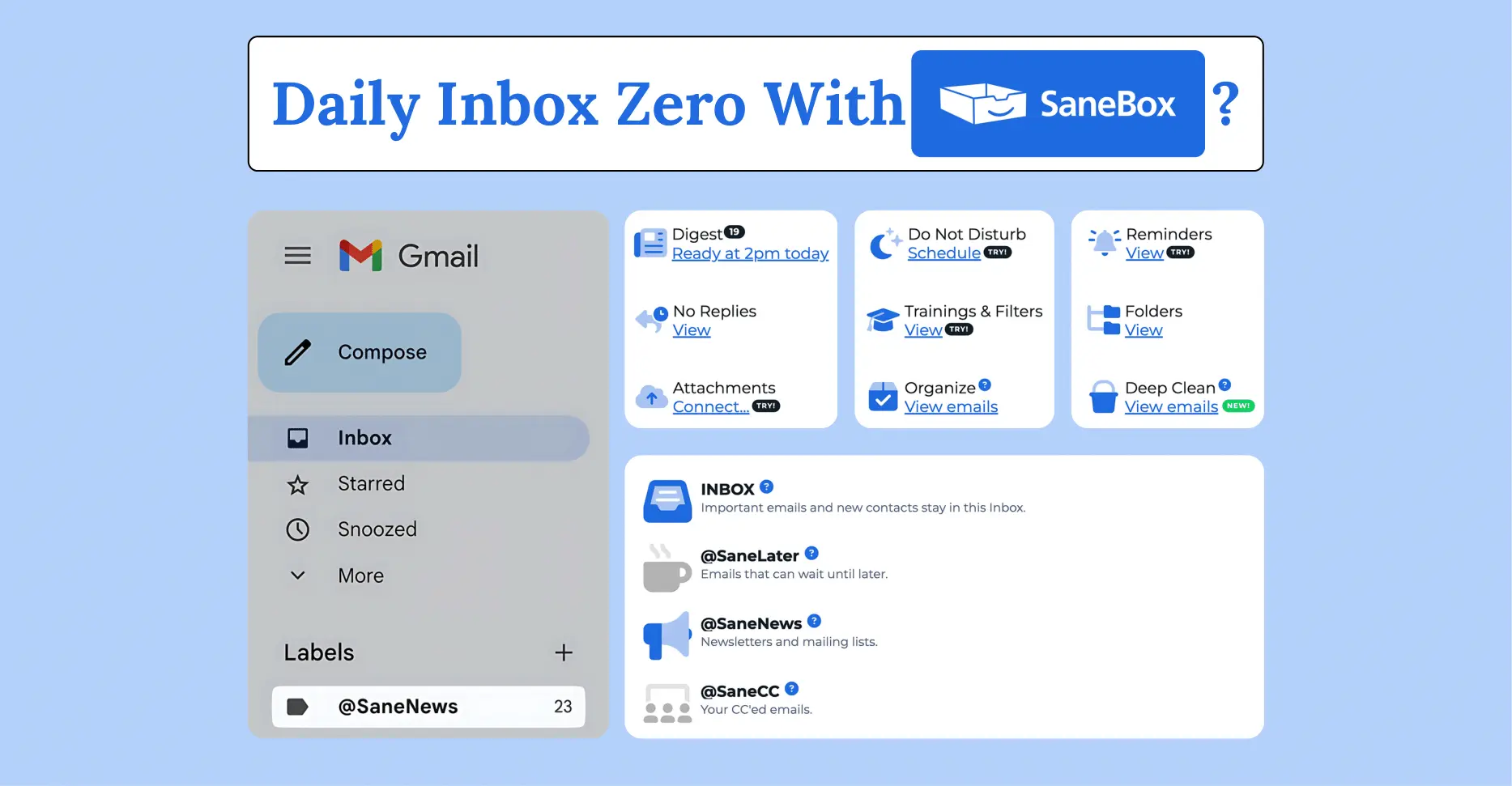
SaneBox uses artificial intelligence to sort emails. Important messages go to your main inbox. Less urgent emails move to folders like “SaneLater.” This keeps your inbox focused on what matters most.
Email Snoozing
This feature lets you hide emails temporarily. You can set emails to return later when you are ready. It helps you avoid distractions and handle messages at the right time.
Daily Email Summaries
SaneBox sends a daily summary of your filtered emails. You get a quick overview without opening every folder. This keeps you informed without spending much time on email.
One-click Unsubscribe
Unsubscribe from unwanted newsletters with one click. SaneBox moves these emails to a special folder called “Black Hole.” This stops future emails from those senders, reducing inbox clutter.
Follow-up Reminders
SaneBox tracks your emails and reminds you to follow up. If you don’t get a reply, it nudges you to check back. This helps you stay on top of important conversations.
Do Not Disturb Mode
This mode pauses incoming emails for a set time. It stops new messages from appearing in your inbox. You get uninterrupted focus time without email interruptions.
How Sanebox Works
SaneBox simplifies email management by using smart technology to organize your inbox. It works quietly in the background, learning how you handle emails. Over time, it sorts messages so you see only what matters most. This keeps your inbox neat without extra effort.
Below is how SaneBox operates to keep your email organized and stress-free.
Connecting Your Email
First, connect your email account to SaneBox. It supports popular services like Gmail, Outlook, and iCloud. SaneBox accesses your messages securely without changing your email provider. This connection allows it to analyze and sort your incoming mail.
Behavioral Analysis
SaneBox studies your email habits. It learns which senders and types of messages you open or ignore. This analysis helps it decide which emails are important. Over time, SaneBox becomes better at filtering your mail based on your behavior.
Automatic Folder Sorting
SaneBox moves less important emails out of your main inbox. It places them into folders like “SaneLater” or “SaneNews.” This sorting happens automatically, saving you time. You focus on urgent messages first, while other emails wait for later review.
Cross-device Compatibility
SaneBox works across all your devices. Whether on a phone, tablet, or computer, your email stays organized. It syncs with your email server, so changes appear everywhere. This ensures consistent inbox management, no matter where you check your mail.
Key Benefits
SaneBox offers several key benefits that make email management easier and more efficient. It helps users save time, keep their inbox tidy, and maintain privacy without changing their current email setup. These benefits improve daily email use for busy people.
Time Savings
SaneBox reduces the time spent on email by sorting messages automatically. It moves less important emails out of the main inbox. Users can focus on urgent and valuable emails right away. This smart filtering speeds up daily email handling. It also sends reminders to follow up on unanswered messages.
Inbox Decluttering
The service cleans up your inbox by placing newsletters, promotions, and spam in separate folders. This leaves only important emails visible. Inbox decluttering helps reduce stress and distractions. It also offers a daily summary of filtered emails so you don’t miss anything. Snooze and unsubscribe features keep the inbox neat over time.
No Extra Software Needed
SaneBox works with your existing email account and client. There is no need to install new software or change your email provider. It connects to services like Gmail, Outlook, and iCloud. The sorting happens on the email server, so it works on all your devices. This makes setup quick and simple.
Security And Privacy
SaneBox values your privacy and keeps your data secure. It uses strong encryption to protect your emails. The service does not read or store email content beyond what is needed for sorting. Your login information stays safe with industry-standard security measures. SaneBox complies with privacy laws to keep your data confidential.
Setting Up Sanebox
Setting up SaneBox is a simple process that gets your inbox organized quickly. It connects to your current email account and uses smart filters to sort your messages. The setup involves just a few steps and does not require technical skills.
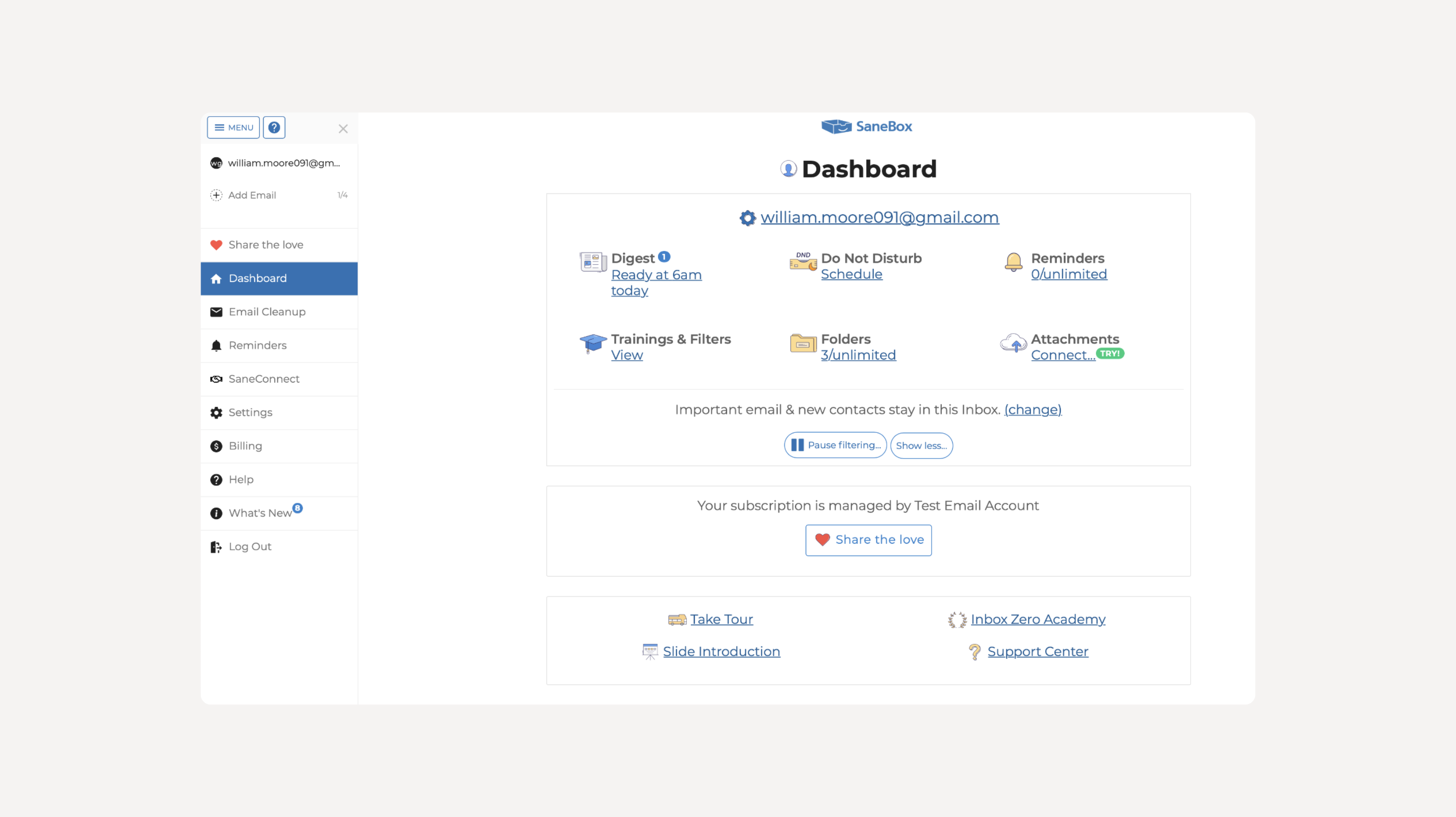
Once connected, SaneBox starts learning your email habits. This helps it decide which emails are important and which can wait. You can also adjust its settings to fit your personal preferences.
Account Linking
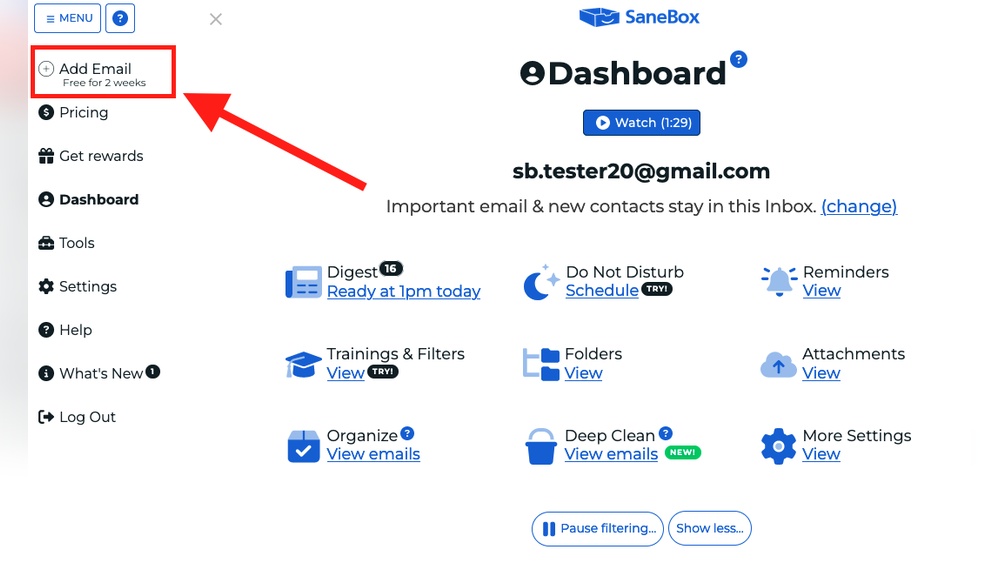
First, sign up on the SaneBox website and link your email account. It works with Gmail, Outlook, Yahoo, and many others. You only need to provide your email address and allow access. SaneBox does not store your emails but works securely on your server.
Initial Email Analysis
After linking, SaneBox scans your recent emails to understand your patterns. It looks for frequent contacts and important senders. Then, it sorts less urgent emails into separate folders. This process takes a few minutes, depending on your inbox size.
Customizing Folder Preferences
You can customize how SaneBox organizes your emails. Choose which folders to use for newsletters, receipts, or social updates. Adjust the settings to move certain emails to your main inbox or other folders. This helps you control what you see first.
Best Practices For Use
Using SaneBox effectively can greatly improve your email management. Following some best practices helps you keep your inbox organized and stress-free. These simple steps make sure you get the most from the features SaneBox offers.
Managing Sanelater Folder
The SaneLater folder holds emails that are less urgent. Check it regularly to avoid missing important messages. Move any emails you want to see in your main inbox back to the inbox. This trains SaneBox to better understand your priorities. Avoid letting SaneLater grow too large to keep it useful.
Using Reminders Effectively
Set reminders on emails that need follow-up. This keeps important tasks from being forgotten. Use reminders to track replies or deadlines. Customize reminder times to match your workflow. Clear reminders promptly to keep your inbox clean and focused.
Optimizing Do Not Disturb
Do Not Disturb pauses new emails temporarily. Use it during deep work or meetings. Set specific times for DND to avoid interruptions. Remember to turn it off when ready to check emails again. This helps improve concentration and reduces stress.
Credit: dhruvirzala.com
Comparing With Other Tools
Comparing SaneBox with other email management tools reveals how it simplifies inbox control. Many users struggle with overflowing inboxes and try various methods to stay organized. SaneBox offers automated assistance, unlike basic manual or built-in options. Below, we explore how SaneBox stacks up against common alternatives.
Sanebox Vs Manual Sorting
Manual sorting requires time and constant attention. You open each email and decide where it belongs. This method can be tiring and error-prone. SaneBox removes this burden by learning your preferences automatically. It moves less important emails out of your main inbox without your input. This saves time and reduces mistakes. Unlike manual sorting, SaneBox works 24/7, managing emails even when you are busy.
Sanebox Vs Built-in Filters
Built-in filters in email clients let you create rules to sort messages. These filters work based on keywords or sender addresses you choose. Setting them up can be complicated for some users. Filters also need regular updates to stay effective. SaneBox uses artificial intelligence to understand your habits. It adapts automatically without manual updates. This makes SaneBox more flexible and accurate at keeping your inbox clean. It sorts emails beyond simple rules, capturing patterns filters miss.
User Experiences
User experiences provide real insight into how Sanebox performs in daily email management. Many users share how it simplifies their inbox and changes their workflow. These experiences highlight both strengths and areas for improvement. Understanding these points helps potential users decide if Sanebox fits their needs.
Feedback From Professionals
Professionals appreciate Sanebox for saving time and reducing stress. Many say it helps them focus on urgent emails from clients and colleagues. The smart sorting feature often receives praise for accuracy. Some mention improved productivity during busy workdays. A few note that initial setup took some time but was worth it. Overall, professionals find it a useful tool for managing large volumes of email.
Solopreneur Reviews
Solopreneurs enjoy the simplicity and automation Sanebox offers. It helps them keep track of important messages without constant checking. Many like the snooze and reminder features for managing follow-ups. Some report better control over newsletters and promotions cluttering their inbox. A few users wish for more customization options. Still, most solopreneurs feel it supports their daily email routine well.
Common Challenges
Some users face challenges with Sanebox’s learning curve. It takes a few weeks to train the AI properly. Occasionally, important emails land in the wrong folder. A small group mentions delays in email delivery after filtering. Others want more detailed control over folder rules. Despite these issues, most find the benefits outweigh the problems. Regular updates aim to improve these areas over time.

Credit: workspace.google.com
Frequently Asked Questions
What Exactly Does Sanebox Do?
SaneBox uses AI to automatically sort emails, moving unimportant messages to folders like “SaneLater. ” It offers snoozing, reminders, one-click unsubscribe, and helps keep your inbox focused and clutter-free across all email clients.
What Is A Sandbox In Email?
A sandbox in email is a secure testing environment that isolates suspicious emails. It helps detect malware without risking your inbox.
What Is The Most Hacked Email Provider?
The most hacked email provider is Gmail due to its large user base, making it a frequent target for cyberattacks.
Is Sanebox Safe To Use?
SaneBox is safe to use. It analyzes email metadata, not content, ensuring privacy. It uses secure servers and respects your data.
Conclusion
Sanebox helps you manage emails with less effort. It sorts messages so important ones stay visible. You can snooze emails and get reminders to follow up. The tool works with any email account on all devices. It keeps your inbox cleaner and saves time every day.
Using Sanebox means less stress and more focus. Try it to see if it fits your email habits. Simple, smart, and easy to use—Sanebox supports better email control.