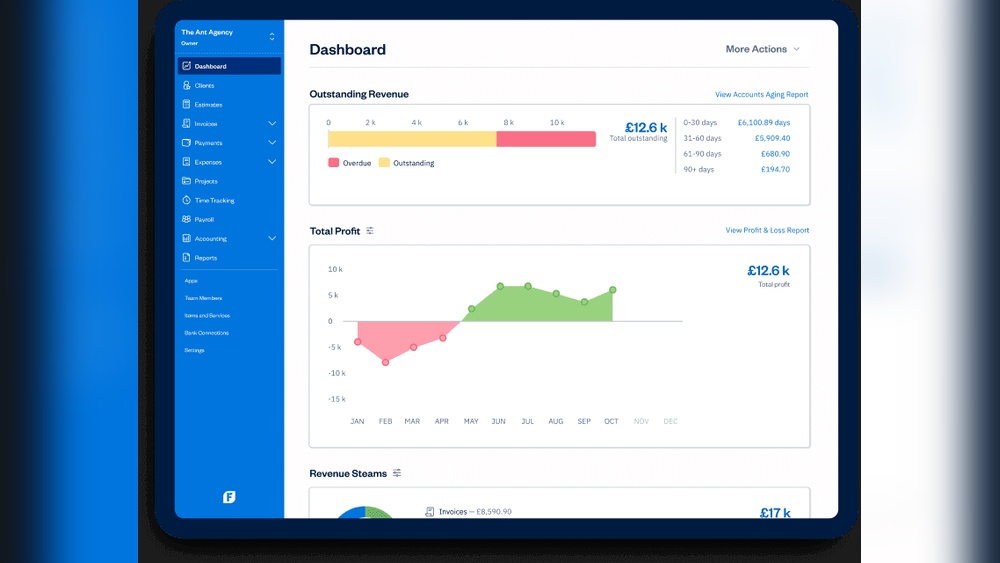
Are you looking for a simple way to manage your business finances without getting overwhelmed? FreshBooks accounting software might be just what you need.
Whether you’re a freelancer, a small business owner, or managing projects, FreshBooks helps you track expenses, send professional invoices, and keep your accounts organized—all in one place. In this guide, you’ll learn step-by-step how to set up your FreshBooks account and use its key features to save time and get paid faster.
Ready to take control of your accounting with ease? Let’s dive in.
Credit: www.globalfpo.com
Account Setup
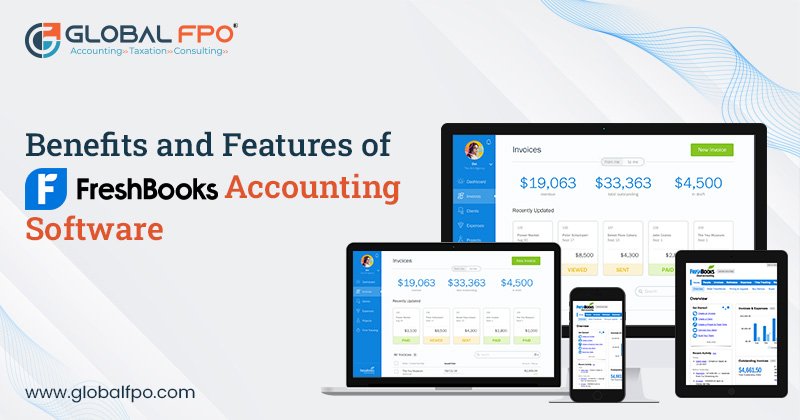
Setting up your FreshBooks account is the first step to managing your business finances smoothly. This process ensures your account matches your business needs. It includes creating your account, adjusting settings, and bringing your old data into FreshBooks. Each step is simple and helps you start right away.
Signing Up
Go to the FreshBooks website and find the sign-up button. Enter your email and create a password. Use a strong password to keep your account safe. Choose the plan that fits your business size and needs. After signing up, check your email to confirm your account. This quick step unlocks all FreshBooks features for you.
Configuring Settings
Once signed in, visit the settings menu. Add your business name, address, and contact details. Set your currency and tax preferences to match your location. Customize your invoice templates with your logo and colors. Enable payment options to get paid faster. Adjust notifications so you never miss important alerts.
Importing Data
Bring in your existing data to keep all information in one place. FreshBooks lets you import contacts, invoices, and expenses. Use CSV files to upload your data quickly. Check for any errors after importing to avoid mistakes. This saves time and keeps your records accurate. Now, your FreshBooks account is ready to use.
Credit: www.freshbooks.com
Client Management
Managing clients efficiently is key to smooth accounting and billing. FreshBooks simplifies this with clear tools to add and organize client data. Keeping client information accurate helps track projects and payments easily. This section shows how to handle client management in FreshBooks.
Adding Clients
Start by clicking the “Clients” tab in FreshBooks. Select “New Client” to add details. Enter the client’s name, email, and contact info. You can also add billing address and phone number. Save the information to create the client profile. This process helps keep client lists updated and ready for invoicing.
Organizing Client Information
FreshBooks lets you group clients by tags or custom fields. Use tags to mark clients by project or priority. Custom fields can store extra info like tax ID or contract dates. All client data is searchable and easy to update. Organized client details improve communication and billing accuracy.
Invoicing
Invoicing is a key feature in FreshBooks. It helps you bill clients quickly and get paid faster. The software simplifies creating, customizing, sending, and tracking invoices. It also supports recurring invoices to save time on repeat billing. Using FreshBooks for invoicing makes your accounting smoother and more organized.
Creating Invoices
Start by selecting the “Invoices” tab in FreshBooks. Click on “New Invoice” to begin. Add your client’s details, such as name and contact. Include the services or products you provided. Enter prices, quantities, and taxes if needed. Review your invoice to ensure all information is correct. Save the invoice to keep a draft or send it immediately.
Customizing Templates
FreshBooks offers invoice templates you can personalize. Choose a template that fits your brand style. Add your company logo and contact details. Change colors and fonts to match your business identity. You can also add notes or payment terms at the bottom. Save your customized template for future invoices to keep consistency.
Sending And Tracking Invoices
Send invoices directly via email from FreshBooks. You can also download and print invoices if needed. The system tracks when clients view your invoice. It alerts you about paid or overdue invoices. You can send reminders to clients with unpaid invoices. This helps you stay on top of your payments and cash flow.
Setting Up Recurring Invoices
For regular clients, create recurring invoices in FreshBooks. Set how often the invoice should be sent, like weekly or monthly. Customize the invoice details for each recurring billing. FreshBooks will automatically send these invoices on schedule. This saves time and reduces manual work. You can pause or stop recurring invoices anytime.
Estimates And Proposals
Estimates and proposals play a crucial role in managing client expectations and securing projects. FreshBooks simplifies this process by allowing users to create clear, professional estimates quickly. These documents help outline project costs before work begins, reducing confusion and building trust with clients.
Using FreshBooks, you can easily draft detailed estimates, customize them with your branding, and send them directly to clients. Once approved, these estimates can be turned into invoices without re-entering information. This seamless flow saves time and reduces errors, keeping your accounting organized.
Drafting Estimates
Start by selecting the client for your estimate in FreshBooks. Add the services or products you plan to provide, including descriptions and prices. You can adjust quantities and apply discounts as needed.
Personalize your estimate by adding your business logo and custom notes. FreshBooks offers templates to keep your documents consistent and professional. Review all details before sending the estimate through email directly from the platform.
Converting Estimates To Invoices
Once a client approves an estimate, FreshBooks allows you to convert it to an invoice with a single click. This process carries over all the line items and prices from the estimate, avoiding duplicate data entry.
After conversion, you can send the invoice immediately or schedule it for later. FreshBooks tracks the status of your invoices and sends reminders to clients, helping you get paid faster. This integration keeps your workflow smooth and efficient.
Expense Tracking
Expense tracking is a key part of managing your finances in FreshBooks. It helps you keep a clear record of where your money goes. Staying on top of expenses makes tax time easier. It also gives you a better view of your business health. FreshBooks offers simple tools to log, organize, and save your expenses.
Logging Expenses
Start by opening the Expenses tab in FreshBooks. Click on “New Expense” to add a cost. Enter details like the amount, date, and vendor name. You can also note the payment method used. Logging expenses regularly keeps your records accurate and up-to-date. This process helps you avoid missing any costs.
Categorizing Costs
Assign each expense to a category to track spending types. Categories can include office supplies, travel, or meals. Proper categorization helps you see where your money goes. FreshBooks lets you create custom categories too. This makes reporting and budgeting easier. Choose the best category before saving your expense.
Attaching Receipts
Attach receipts to your expense entries for proof and easy access. You can upload images or PDF files directly to FreshBooks. This feature keeps your documents organized and safe. It also simplifies audits or tax reviews. Make it a habit to upload receipts right after logging expenses. This small step saves time later.

Credit: www.youtube.com
Time And Project Tracking
Tracking time and projects is vital for accurate billing and efficient work. FreshBooks simplifies this process with clear tools. It lets you organize projects, record hours, and control budgets easily.
Creating Projects
Start by setting up a new project in FreshBooks. Enter the project name and assign it to a client. Add a description to explain the project’s goal. You can also set a start date and deadline. This helps keep your work organized and focused.
Tracking Billable Hours
Use the timer or manual entry to track your work hours. Each entry can be linked to a project and client. Mark hours as billable to include them in invoices. This ensures you get paid for all your work. FreshBooks also shows total hours worked for easy review.
Managing Project Budgets
Set a budget for each project to control costs. FreshBooks lets you enter the budget amount and track expenses against it. You can see how much budget remains at any time. This helps avoid overspending and keeps projects on track.
Payments
Managing payments in FreshBooks is simple and efficient. The software lets you accept payments online, track them clearly, and keep your accounts up to date. This saves time and reduces errors.
Below are key steps to handle payments effectively using FreshBooks.
Activating Online Payments
First, activate online payments in your FreshBooks account. Go to the “Payments” section in settings. Choose the payment methods you want to accept, like credit cards or bank transfers. Follow the instructions to connect your bank account securely. This step allows your clients to pay invoices directly online.
Understanding Transaction Fees
Each payment made online comes with a small fee. FreshBooks charges 2.9% plus $0.30 per transaction for most credit cards. American Express cards have a fee of 3.5% plus $0.30. Bank transfers (ACH) also have fees. These fees cover processing costs and are deducted automatically.
Knowing these fees helps you plan your pricing and understand your net income from payments received.
Recording Payments
Once a client pays, FreshBooks records the payment automatically if online payments are enabled. For cash or check payments, enter them manually. Go to the invoice and click “Add Payment.” Fill in the amount, date, and payment method. This keeps your records accurate and your financial reports up to date.
Payroll Integration
Payroll integration in FreshBooks simplifies paying your team. It connects your accounting data with employee payments. This feature saves time and reduces errors. You can manage salaries, taxes, and deductions all in one place. The process is smooth and fits well with FreshBooks’ easy interface.
Setting Up Payroll
Begin by entering your business information. Add details like company name and tax ID. Next, input each employee’s data. Include names, addresses, and tax forms. Set pay schedules to match your business needs. Choose how often employees receive payments. Confirm your bank details for direct deposits. FreshBooks guides you step-by-step through this setup.
Managing Employee Payments
After setup, you can run payroll with a few clicks. FreshBooks calculates wages, taxes, and deductions automatically. Review each pay stub before finalizing payments. Employees get paid on time, every time. You can also generate and send pay reports easily. Track payroll history to stay organized. FreshBooks helps keep your payroll simple and accurate.
Reporting Tools
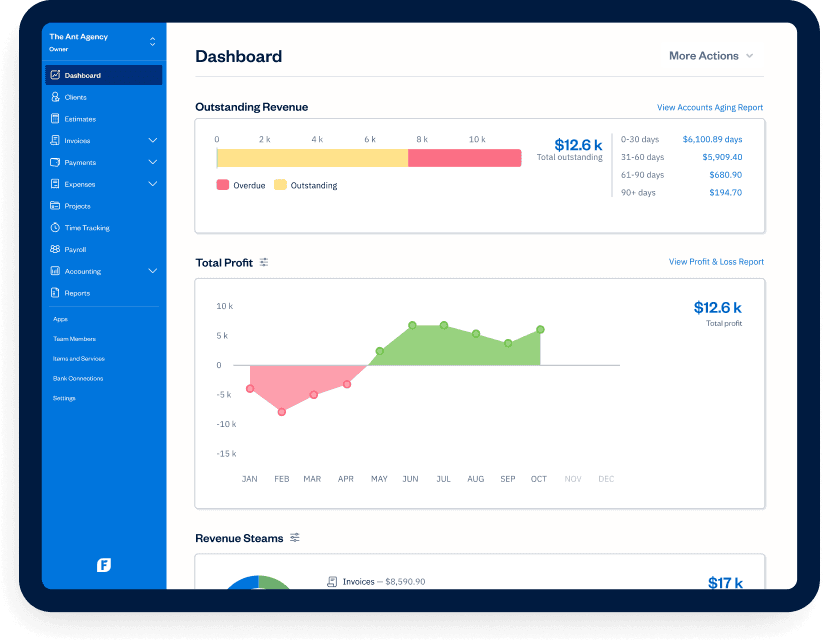
FreshBooks offers powerful reporting tools that help you understand your business finances. These tools create clear and simple reports. They show key information in an easy way. Using these reports, you can track money coming in and going out.
Reports help in making smart decisions. They give a clear picture of your business health. FreshBooks makes it easy to generate and analyze these reports.
Generating Financial Reports
FreshBooks lets you create many types of financial reports. You can generate profit and loss statements, balance sheets, and expense reports. Choose the report type from the dashboard. Select the date range for your report. FreshBooks then creates a clear summary automatically.
These reports show your income, costs, and profits. You can download or print them for your records. They help you stay organized and ready for tax time.
Analyzing Business Performance
Use FreshBooks reports to check your business progress. Look at your revenue trends over time. Spot areas where costs are rising. This helps you control spending and increase profits.
Reports also show which clients or projects bring the most income. Focus on these to grow your business. FreshBooks makes it simple to understand your financial data. This keeps your business on the right track.
Mobile App Features
The FreshBooks mobile app brings powerful accounting tools to your fingertips. You can manage your business finances anytime, anywhere. The app is designed to keep your workflow smooth on mobile devices. It offers key features that help you stay organized and efficient outside the office.
Invoicing On The Go
Create and send invoices directly from your phone. Choose from professional templates to match your brand style. Add client details, payment terms, and due dates quickly. Send invoices instantly by email or share links with clients. Track invoice status to see when clients view or pay them. This feature keeps your cash flow steady without delays.
Expense Management
Capture and log business expenses as they happen. Snap photos of receipts and attach them to expenses for easy record-keeping. Categorize expenses to organize spending and prepare for taxes. The app syncs all expense data with your FreshBooks account automatically. This saves time and reduces errors in expense tracking.
Time Tracking
Record billable hours on projects using the mobile timer. Start and stop the timer with one tap to keep accurate logs. Assign tracked time to specific clients or tasks for clear billing. View and edit time entries anytime to correct mistakes. This feature helps you bill clients fairly and improves project management.
Tips For Efficiency
Efficiency is key when using FreshBooks accounting software. Small changes in how you manage tasks can save time and reduce errors. Focus on tools and features that speed up your work. These tips help you work smarter, not harder.
Automating Tasks
Automate repetitive tasks like invoicing and expense tracking. Set up recurring invoices for regular clients. FreshBooks sends them automatically on schedule. Use automatic payment reminders to reduce late payments. Save time by letting FreshBooks handle data entry. Connect your bank to import expenses without manual input.
Using Integrations
Connect FreshBooks with apps you already use. Integrate with payment gateways to accept online payments quickly. Sync with project management tools to track billable hours easily. Use CRM software to manage client information in one place. These integrations reduce switching between apps and keep data accurate.
Common Challenges
FreshBooks is a popular accounting tool, but users face some common challenges. Understanding these issues helps you use the software more effectively. It can save time and reduce frustration as your business grows.
Handling Software Limitations
FreshBooks offers many features, but it has some limits. Advanced accounting tools are missing for complex needs. Custom reports and detailed inventory tracking are not available. Users may find it hard to manage all financial details in one place. Also, FreshBooks requires a steady internet connection to work. Offline access is not supported, which can be a problem for some users.
Switching from another accounting system to FreshBooks can take time. Importing data is not always smooth. Users need patience and sometimes extra help to set up properly.
Managing Growth Costs
As your business grows, FreshBooks costs can increase. The pricing plans depend on the number of clients and features. More clients mean higher monthly fees. Some users find this expensive compared to other software options.
Transaction fees apply for online payments. These costs add up with frequent payments. It’s important to track and plan your expenses carefully. This way, you avoid surprises and keep your budget on track.
Frequently Asked Questions
What Are The Downsides Of Freshbooks?
FreshBooks can get costly as your business grows and lacks some advanced accounting features. It requires an internet connection and switching from other software takes time.
How To Get Started With Freshbooks?
Sign up for a FreshBooks account, set up your profile, and explore its dashboard. Add clients, create invoices, and track expenses to start. Customize settings and activate online payments for full functionality.
Is Freshbooks Easier To Use Than Quickbooks?
FreshBooks offers a simpler, more user-friendly interface, ideal for freelancers and service businesses. QuickBooks suits complex, scaling companies better.
How Much Does Freshbooks Charge Per Transaction?
FreshBooks charges 2. 9% plus $0. 30 per transaction for Visa, Mastercard, and others. American Express costs 3. 5% plus $0. 30. Bank transfers (ACH) follow similar fees.
Conclusion
Using FreshBooks simplifies your accounting tasks effectively. You can easily track expenses, send invoices, and manage projects. The software suits freelancers and small businesses well. It keeps your financial data organized and accessible online. Regular use helps avoid errors and saves time.
Explore its features step-by-step for best results. Stay consistent to keep your accounts up to date. FreshBooks offers a clear, user-friendly way to handle finances. Try it patiently and watch your accounting improve.